
The internet is abuzz with talks of the recent outage faced by Domain Registrar Godaddy. The outage was suspected to be because of a Distributed Denial of Service Attack (commonly known as a DDoS attack) that targeted Godaddy’s DNS servers, affecting several websites as well as email services. (However, a recent statement by Godaddy mentions that it was an internal network error that caused the interruption in services)
DDoS attacks are a fairly common occurrence on the internet and are something we’ve experienced in the past as well. Here is some more information on DDoS attacks, who they affect and how we mitigate such attacks.
What is a DDoS attack?
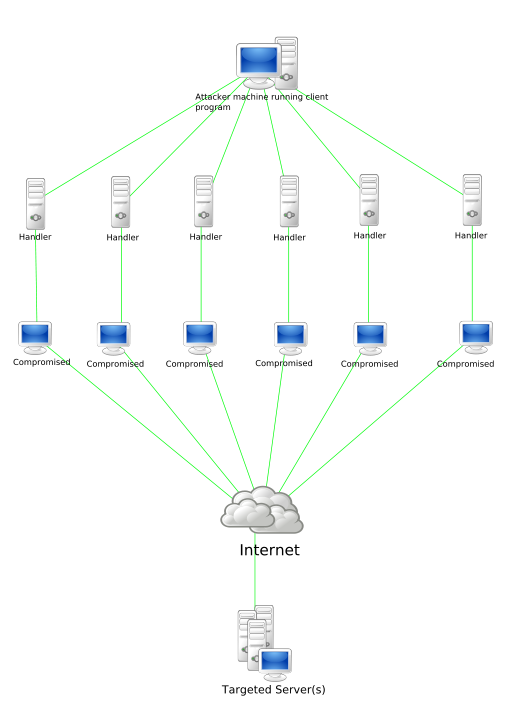 A Denial of Service attack
aims to make a website unavailable to users by flooding the website’s
servers with an extremely high number of requests. These multiple
incoming requests can make website resolution exceedingly slow and can
even cause servers to crash.
A Denial of Service attack
aims to make a website unavailable to users by flooding the website’s
servers with an extremely high number of requests. These multiple
incoming requests can make website resolution exceedingly slow and can
even cause servers to crash.A Distributed Denial of Service (DDoS) attack is essentially a DoS attack that originates from multiple sources. Such attacks are usually carried out using thousands of unsuspecting zombie machines known as botnets.
DDoS attacks have traditionally been used by cyber criminals to extort money from website owners that rely on the accessibility of their websites. However ‘Hacktivists’ have also initiated such attacks in the past to bring down company and government websites in protest of certain policies or decisions.
A popular recent example is anonymous’ attack in protest of the Megaupload Raids that targeted various government and music industry sites.
Who can it affect?
DDoS attacks are difficult to safeguard against completely and can affect large and small websites alike.
Having suffered a DDoS attack on our DNS servers in the past, we understand that such attacks can occur and the best solution is to have systems in place that allow you to mitigate the attack and get systems back online as soon as possible.
Which leads us to – How do we mitigate DDoS attacks?
While there isn’t a lot that can be done to prevent DDoS attacks, there are certain techniques that we employ to mitigate DDoS attacks and restore services.
To help mitigate DDoS attacks we’ve employed the services of Prolexic Technologies that is a global leader in DDoS Protection & Mitigation. While there are multiple ways in which Prolexic helps mitigate DDoS attacks, here is a simplified version of how Prolexic works.
- BGP Routing:
With BGP routing, when a DDoS attack occurs, our traffic gets routed through Prolexic’s servers where malicious and legitimate traffic is segregated and legitimate users can continue to access our services. - Advanced Filtering:
As the traffic gets routed through Prolexic’s servers, their filtering technology identifies anomalies which are then “red flagged” by the system. Moreover, research is then conducted by Prolexic engineers to determine whether this activity should be blocked on the network. Once malicious activity has been determined, it is labeled in the system and blocked.
As a individual website owner you have limited control over a server but you can use CloudFlare to protect your websites from attacks.
CloudFlare protects your websites by routing traffic through their intelligent global network – a little like what Prolexic does for us

We already provide CloudFlare on our Hosting servers so Resellers can enable and start using it immediately. More information on how CloudFlare can protect you can be found here - http://www.cloudflare.com/overview
How Web Hosting Providers should deal with a DDoS Attack:
DDoS attacks are a very real threat to website owners and hosts worldwide but like I said before, there is no foolproof way for anyone to really protect themselves against such an attack.
As a Web Hosting provider yourself, I’m sure you’ve come across Customers that consider leaving you in the aftermath of a DDoS attack. You might have felt the same of your upstream provider as well. However, it’s important to remember that anyone can be a target.
An indicator of a good Host isn’t one that hasn’t been attacked yet but one that can effectively restore services and reduce damage.
How Web Hosts handle the situation is also an important indicator. I’ve always seen that the ones that do handle attacks effectively provide detailed information on the following: (This actually applies to most issues/interruption in services)
- Which services were affected?
- Are the services back up or how long will it take to restore services?
- Does the Client need to do anything?
- Why did this happen i.e. details of the DDoS attack
- How was the attack mitigated?
- Can this happen again?
- Who can Clients contact if they have any concerns?
So there you have it – everything you need to know about DDoS Attacks and how you can deal with them! I’d love to know what you think so do comment and let me know your thoughts.
Original Post


