I review for BookLook Bloggers
Showing posts with label IIS. Show all posts

Sunday, February 1, 2015

Generate CSR: IIS 6 Microsoft Windows Server 2003

Follow these instructions to generate a Private Key and CSR. You must have at least Service Pack 1 installed.
  1. Open the Internet Information Services (IIS) Manager. From the Start button select Programs >Administrative Tools > Internet Information Services Manager.
  2. In IIS Manager, double-click the local computer, and then double-click the Web Sites folder.
  3. Right-click the Web site for which you want to request a certificate, and then click Properties. By default it will be Default Web Site, yours may be different.

    Select Default Web Site
  4. Select the Directory Security tab and click Server Certificate in the Secure communicationssection.
  5. Click Next in the Welcome to the Web Server Certificate Wizard window.
  6. Select Create a new certificate, Click Next.
  7. Select Prepare the request now, but send it later.
  8. At the Name and Security Settings screen, fill in the friendly name field for the new certificate
    Tip: the friendly name can be any name that helps you remember what this certificate is for when you see it in a list later. We recommend using your domain as the friendly name, such as mysite.com.
  9. Select bit length. We recommend using a 2048-bit length (2048 is required for EV SSL). ClickNext.
  10. Leave the 'Select cryptographic service provider (CSP) for this certificate' unchecked. Click Next.
  11. You will be asked for several pieces of info which will be used by GeoTrust to create your new SSL certificate. These fields include the Common Name (aka domain, FQDN), organization, country, key bit length, etc. Use the CSR Legend in the right-hand column of this page to guide you when asked for this information. The following characters should not be used when typing in your CSR input: < > ~ ! @ # $ % ^ / \ ( ) ? , &
  12. Enter your Organization (e.g., Gotham Books Inc) and Organizational Unit (e.g., Internet Sales). Click Next.
  13. THIS IS THE MOST IMPORTANT STEP! Enter your site's Common Name. The Common Name is the fully-qualified-domain name for your web site or mail server. What ever your end-user will see in their browser's address bar is what you should put in here. Do not include http:// nor https://. Refer to the CSR legend in the right-hand column of this page for examples. If this is wrong, your certificate will not work properly. Click Next.
  14. Enter your Geographical Information for Country, State, and City. Do not abbreviate States and Cities. Click Next.
  15. In the Certificate Request File Name box enter the path and file name where you want to save your CSR. You can use the default of c:\certreq.txt. Remember where you save it, you'll need to be able to find this CSR file later. Click Next.
  16. Review the data on the Request File Summary screen and click Next.
  17. Click Finish to complete the Wizard.
  18. Now, from a simple text editor such as Notepad (do not use Word), open the CSR file you just created at c:\certreq.txt (your path/filename may be different). You will need to copy-and-paste the contents of this file, including the top and bottom lines, into the relevant box during the online order process.

    Open CSR in Notepad

Wednesday, October 10, 2012

Identifying Worker Process (w3wp.exe) – IIS 6.0 and IIS 7.0 for Debugging ASP.NET Application

If you are debugging a ASP.NET web application which is hosted on IIS, you need to attach the particular worker process in Visual Studio to start debugging. To Attach a process we can go to Tools > Attach Process or use shortcut key Ctrl +P. The process window will show the worker process (w3wp.exe) which is currently running on IIS. You need to select the process and click on attach button to start the debugging.
Problem starts when you have multiple worker process running on IIS.  If you have multiple sites hosted on IIS and each site having their own application pool then you will see the list of all worker process in the Process Attach window.

Here  you need to identify the particular worker process which is associated with your application pool.
Note: Whenever we create a new Application Pool, the ID of the Application Pool is being generated and it’s registered with the HTTP.SYS (Kernel Level of IIS) . So whenever HTTP.SYS Received the request from any web application,  it checks for the Application Pool and based on the application pool it send the request
To know more about IIS Request Process, here is one of my aticle How IIS Process ASP.NET Request
Identify Worker Process in IIS 6.0

• Start > Run > Cmd
• Go To Windows > System32
• Run cscript iisapp.vbs
• You will get the list of Running Worker ProcessID and the Application Pool Name.

So, here is your list of all worker process with corresponding application pool name.  From  the Application pool name you can easily identify which worker process is related with your application.
Identify Worker Process in IIS 7.0

From IIS 7.0 you need you to run IIS Command Tool ( appcmd ) .
• Start > Run > Cmd
• Go To Windows > System32 > Inetsrv
• Run appcmd list wp
This will show you list worker process that is running on IIS 7.0 in the similar format of IIS 6.0

Original Post:

How to use IIS Manager to get Worker Processes (w3wp.exe) details information ?

In one of my previous blog post, Identifying Worker Process (w3wp.exe) – IIS 6.0 and IIS 7.0 for Debugging ASP.NET Application  -  I have explained about how we can identify the list of currently running worker process  using command prompt while we need to attach process from visual studio . But do you know for IIS 7.0 and IIS 7.5 we can get the worker process (w3wp.exe) details like Application Pool name, Process ID, CPU Usages from IIS Manager itself. Even you can get details of each worker process for a “Web Gardenscenarios.  So when you need to attach some process for debugging from Visual studio, Instead of going to command prompt, you can easily identify the worker process Id from IIS itself.  
2

Get Worker Processes ( w3wp.exe) List :

To get list of running  worker process, Open IIS Manager ( Run > Inetmgr ), Select root level from left site navigation tree and from “Features View Panel” select “Worker Processes”
1
Click on the “Worker Processes” to get details of all worker process which are currently running as shown in below.
ProcessList
So from the above list of worker processes you can get the details of Application Pool Name, Process ID, state of worker processes along with CPU uses and memory uses.

Attach Worker Processes (w3wp.exe) For Debugging  :

From Visual studio Attach Process window you will find the same list of worker process with the same Process ID. So based on your application Pool name you can attach the process and start the debugging.
AttacheProcess
To Know more about attach process while debugging your application is running on IIS,  please read one of my complete article -  Debug Your ASP.NET Application that Hosted on IIS : Process Attach and Identify which process to attach ( Note: This article was targeted to debugging with IIS 6.0 )

What else we can have from Worker Processes lists in IIS 7 Manager?

We have already identified the worker process  and Application Pool name which are more than enough for us to attach a process from Visual Studio. Now what else we can get out of this list ? Yes we can have enough information regarding worker process like
  • Worker Process Current State
  • CPU Uses by the worker process
  • Memory uses by worker process
  • Current Request Handling by Worker Process

What about the current Worker Process (w3wp.exe ) State  ?

You can get the current status of worker process from status column. Worker processes having 3 status as listed below
  1. Running
  2. Stopping
  3. Starting
image
 RunningState
You must be wondering why there is no  “Stopped” Status for Worker Process in IIS ?  I will explorer it in a different blog post. Yeah that will be very interesting ! Very soon !
Similar like State you can also monitor CPU % Uses and  Memory Uses from the IIS Itself.

What about the Current  Request  at Worker Process ?

Well, you can view the current request details for a particular worker process from IIS Manager Itself. So, When your worker process is on running mode, If you want to check the what are the thing going on backend, just double click on the particular worker process.
CurrentRequest
From the request details, you can get web site id, URL, HTTP Verbs, client ID and State along with Module Name. I liked the State and  Module name column very much. This two columns will let you know where is your current request and which HTTP Module is taking care of that Request.
To know more about how fundamentals How IIS process ASP.NET Request you can read one of my article How IIS Process ASP.NET Request
You can also read  “Securely Implement Request Processing, Filtering, and Content Redirection with HTTP Pipelines in ASP.NET” to know more advance topics.
To know more about Worker Process Request read View Currently Executing Requests in a Worker Process (IIS 7)

View Details of Each Worker Process when you are using Web Garden

Before start web garden mode, if you want to know more about Web garden or just wanted to recap please read on of my previous article  What is the difference between Web Farm and Web Garden ?  
If You have configured  your site as Web Garden, you can also get the list of all the worker process in the worker processes list with the  different worker Process ID  but all worker process should have a “Single Application Pool “ .
ConfigureWebGarden  WebGardens
So, from the above diagrams you can see, “WCFSite” has configured as  Web Garden mode with Two Worker Process and from the Worker Processes list you can view both the worker process with different Worker Process Id and both of them are listed under  same Application Pool.
Note: You will able to see only the worker process which are in running state .
Summary : In this blog post I have explained how you can use the power of IIS Manager to get the list of worker process with there application pool id, name, Running State along with CPU and Memory Uses along with viewing the worker process request. I have also explained about how to  get details of each worker process in web garden scenarios. I will publish another blog post  Worker Process State very soon.
Hope this will help !
Thanks !

Original Post:

Beginner’s Guide: How IIS Process ASP.NET Request

Introduction

When request come from client to the server a lot of operation is performed before sending response to the client. This is all about how IIS Process the request.  Here I am not going to describe the Page Life Cycle and there events, this article is all about the operation of IIS Level.  Before we start with the actual details, let’s start from the beginning so that each and everyone understand it’s details easily.  Please provide your valuable feedback and suggestion to improve this article.

What is Web Server ?

When we run our ASP.NET Web Application from visual studio IDE, VS Integrated ASP.NET Engine is responsible to execute all kind of asp.net requests and responses.  The process name is “WebDev.WebServer.Exe” which actually takw care of all request and response of an web application which is running from Visual Studio IDE.
Now, the name “Web Server” comes into picture when we want to host the application on a centralized location and wanted to access from many locations. Web server is responsible for handle all the requests that are coming from clients, process them and provide the responses.

What is IIS ?

IIS (Internet Information Server) is one of the most powerful web servers from Microsoft that is used to host your ASP.NET Web application. IIS has it’s own ASP.NET Process Engine  to handle the ASP.NET request. So, when a request comes from client to server, IIS takes that request and  process it and send response back to clients.

Request Processing :

Hope, till now it’s clear to you that what is Web server and IIS is and what is the use of them. Now let’s have a look how they do things internally. Before we move ahead, you have to know about two main concepts
1.    Worker Process
2.   Application Pool
Worker Process:  Worker Process (w3wp.exe) runs the ASP.Net application in IIS. This process is responsible to manage all the request and response that are coming from client system.  All the ASP.Net functionality runs under the scope of worker process.  When a request comes to the server from a client worker process is responsible to generate the request and response. In a single word we can say worker process is the heart of ASP.NET Web Application which runs on IIS.
Application Pool: Application pool is the container of worker process.  Application pools is used to separate sets of IIS worker processes that share the same configuration.  Application pools enables a better security, reliability, and availability for any web application.  The worker process serves as the process boundary that separates each application pool so that when one worker process or application is having an issue or recycles, other applications or worker processes are not affected. This makes sure that a particular web application doesn’t not impact other web application as they they are configured into different application pools.

Application Pool with multiple worker process is called “Web Garden”.
Now, I have covered all the basic stuff like Web server, Application Pool, Worker process. Now let’s have look how IIS process the request when a new request comes up from client.
If we look into the IIS 6.0 Architecture, we can divided them into Two Layer
1.    Kernel Mode
2.    User Mode
Now, Kernel mode is introduced with IIS 6.0, which contains the HTTP.SYS.  So whenever a request comes from Client to Server, it will hit HTTP.SYS First.

Now, HTTP.SYS is Responsible for pass the request to particular Application pool. Now here is one question, How HTTP.SYS comes to know where to send the request?  This is not a random pickup. Whenever we creates a new Application Pool, the ID of the Application Pool is being generated and it’s registered with the HTTP.SYS. So whenever HTTP.SYS Received the request from any web application, it checks for the Application Pool and based on the application pool it send the request.

So, this was the first steps of IIS Request Processing.
Till now, Client Requested for some information and request came to the Kernel level of IIS means at HTTP.SYS. HTTP.SYS has been identified the name of the application pool where to send. Now, let’s see how this request moves from HTTP.SYS to Application Pool.
In User Level of IIS, we have Web Admin Services (WAS) which takes the request from HTTP.SYS and pass it to the respective application pool.

When Application pool receive the request, it simply pass the request to worker process (w3wp.exe) . The worker process “w3wp.exe” looks up the URL of the request in order to load the correct ISAPI extension. ISAPI extensions are the IIS way to handle requests for different resources. Once ASP.NET is installed, it installs its own ISAPI extension (aspnet_isapi.dll) and adds the mapping into IIS.
Note : Sometimes if we install IIS after installing asp.net, we need to register the extension with IIS using aspnet_regiis command.

When Worker process loads the aspnet_isapi.dll, it start an HTTPRuntime, which is the entry point of an application. HTTPRuntime is a class which calls the ProcessRequest method to start Processing.

When this methods called, a new instance of HTTPContext is been created.  Which is accessible using HTTPContext.Current  Properties. This object still remains alive during life time of object request.  Using HttpContext.Current we can access some other objects like Request, Response, Session etc.

After that HttpRuntime load an HttpApplication object with the help of  HttpApplicationFactory class.. Each and every request should pass through the corresponding HTTPModule to reach to HTTPHandler, this list of module are configured by the HTTPApplication.
Now, the concept comes called “HTTPPipeline”. It is called a pipeline because it contains a set of HttpModules ( For Both Web.config and Machine.config level) that intercept the request on its way to the HttpHandler. HTTPModules are classes that have access to the incoming request. We can also create our own HTTPModule if we need to handle anything during upcoming request and response.

HTTP Handlers are the endpoints in the HTTP pipeline. All request that are passing through the HTTPModule should reached to HTTPHandler.  Then  HTTP Handler  generates the output for the requested resource. So, when we requesting for any aspx web pages,   it returns the corresponding HTML output.
All the request now passes from  httpModule to  respective HTTPHandler then method and the ASP.NET Page life cycle starts.  This ends the IIS Request processing and start the ASP.NET Page Lifecycle.

Conclusion

When client request for some information from a web server, request first reaches to HTTP.SYS of IIS. HTTP.SYS then send the request to respective  Application Pool. Application Pool then forward the request to worker process to load the ISAPI Extension which will create an HTTPRuntime Object to Process the request via HTTPModule and HTTPHanlder. After that the ASP.NET Page LifeCycle events starts.
This was just overview of IIS Request Processing to let Beginner’s know how the request get processed in backend.  If you want to learn in details please check the link for Reference and further Study section.

Original Post:

HOWTO: Diagnose 401.x HTTP errors on IIS

One of the most common questions asked about IIS on the newsgroups as well as Microsoft Product Support is "why am I getting 401 Access Denied"?
There are many, many possible causes and variations, but from the IIS perspective, the top-level, logical categories are fixed. This information can help dramatically narrow down the scope of any investigation, but unfortunately, few people know to take advantage of this information. This is what I am going to address with this entry - how to use and diagnose the 401.x error codes on IIS.

Step 1: Determine the SubStatus Code

When you get a 401 response in the browser from IIS and you want to troubleshoot it, the first thing you should do is determine what "type" (i.e. HTTP substatus) of 401 it is.
Starting with IIS 6.0, the IIS web log files located at:
%SYSTEMROOT%\System32\LogFiles\W3SVC###\*.log
record both the HTTP status and substatus code, which when combined with the Win32 error code can aid to troubleshoot many 401 errors. The W3C log entries look like the following, with the HTTP status, substatus, and Win32 error codes highlighted.
#Software: Microsoft Internet Information Services 6.0
#Version: 1.0
#Date: 2005-05-21 05:39:27
#Fields: date time s-ip cs-method cs-uri-stem cs-uri-query s-port cs-username c-ip cs(User-Agent) sc-status sc-substatus sc-win32-status 
2005-05-21 05:39:27 192.168.0.101 GET /VirtualServer/VSWebApp.exe view=1 1024 WEBBROWSER\User 192.168.0.101 Mozilla/4.0+(User-Agent) 200 0 0
2005-05-21 05:39:27 192.168.0.101 GET /VirtualServer/scripts/VSScripts.js - 1024 - 192.168.0.101 Mozilla/4.0+(User-Agent) 401 2 5
2005-05-21 05:39:27 192.168.0.101 GET /VirtualServer/scripts/VSScripts.js - 1024 - 192.168.0.101 Mozilla/4.0+(User-Agent) 401 1 2148074254
2005-05-21 05:39:27 192.168.0.101 GET /VirtualServer/scripts/VSScripts.js - 1024 WEBBROWSER\User 192.168.0.101 Mozilla/4.0+(User-Agent) 304 0 0
You can also get the substatus code from the HTML response itself, but web browsers like Internet Explorer have options like "Show Friendly HTTP Errors" which obscure the detailed error response by making them "simple" and "user friendly", so if you want the real error response, you need to turn off that option.
Unfortunately, prior to IIS 6.0, the IIS web log files are useless in distinguishing 401 substatus because it does not even record it. Your only option is to figure this out from the HTML response itself, assuming the 401.x Custom Error pages for that URL's scope are configured to send different HTML pages for each type of error.

Step 2: Determine Course of Action

Once you have determined the HTTP substatus code, you can start narrowing down the types of failures and causes. The following are the fixed categories that IIS reports. I will give detailed explanation of what each means as well as some common causes/solutions (obviously not exhaustive).

401.1 Denied by Invalid User Credentials

This error indicates that IIS failed to obtain an NT user token with which to execute the request.
In a nutshell, IIS expects to have a NT user token at the end of Authentication (even anonymous authentication - see this URL for details), and if this does not happen, you get 401.1.
Some common causes include:
  • The client gave the wrong username/password (including none at all). This could be from incorrect cached auto-login attempt by the browser, or from a user login dialog from the browser.
  • Invalid Kerberos configuration - on IIS6, if you have a customized Application Pool Identity AND Integrated Authentication is used AND the web server is in a domain, you will mysteriously get 401.1 unless you configure SETSPN *or* change Integrated Authentication to favor NTLM. See the following URLs on Application Pool Identity, Integrated Authentication in IIS, and Constrained Delegation configuration as well as this URL on additional Kerberos-related troubleshooting for more information
  • You enabled Anonymous authentication, yet you still get 401.1 for all requests. One common cause is if the configured anonymous user credentials stored in the IIS metabase configuration file is DIFFERENT than the user principle's credentials in reality (i.e. mismatched password). In all cases, the preferred solution is to manually synchronize the username/password of the anonymous user principle in IIS with that of the real user principle. I have seen many amazing variations of this cause, including:
    • For testing purposes, the user types in his/her OWN username/password as anonymous user credentials at some point in the past and forgets about it. Later, when password policy forces them to change their password, the anonymous user credentials stored in IIS configuration is now mismatched with reality. On subsequent anonymous requests, IIS fails to login and obtain a NT user token for anonymous authentication and fails with 401.1, and it looks like IIS is just plain buggy and could not even support anonymous authentication.
    • I have also seen the reverse happen - user configures IIS to use their username/password as anonymous user, and when they changed their password, web server traffic quickly causes IIS to incorrectly login with wrong user credentials too many times, causing their user account to be locked out. These users now complain that their user account is mysteriously getting locked out as soon as it is unlocked, even before they log in anywhere.
    • On upgrading from IIS 5 to IIS 6, IIS Sub Authentication (i.e. the "allow IIS to control anonymous user's password" feature) is enabled by default for compatibility. This allows IIS to log in the anonymous user principle without actually keeping the user credentials in sync, and anonymous authentication looks good while in IIS 5 Compatibility Mode. However, as soon as you switch into IIS 6 Worker Process Isolation Mode, Sub Authentication is disabled because it requires a privileged process identity like Local System (which is a known and quite unnecessary security risk for the lowly purpose of password sync). This means that IIS 6 now tries to log in the anonymous user credentials stored in the metabase, which has probably NEVER been kept in sync with reality through the upgrade... and you now get 401.1 for every single anonymous request. To a casual user, it looks like switching into IIS 6's native mode simply breaks anonymous authentication and the rest of the website.
  • The server has been reconfigured to deny necessary login privileges for the authenticating user or its containing group (either anonymous or through some authentication protocol). This can be done through automated re-application of Group Policy for domain members, DCPROMO to/from Domain Controller, or static application of security templates. What ends up happening is that the server-side reconfiguration may remove Local/Remote Login rights for that user, impose new restrictions (like Login hours, Logon type), etc... preventing IIS from successfully logging in the user to execute requests and resulting in 401.1.
  • Your event log could be full for some reason - see KB 832981.

401.2 Denied by Server Configuration

This error indicates that the web server is configured to require certain authentication protocols for communication, but the browser failed to use any of those authentication protocols. The corrective action should be to either configure to require an authentication protocol acceptable to the client, or use a client that satisfies the server authentication protocol requirements.
  • A common cause of this issue happens with the older Netscape/Mozilla browser clients and an IIS web server configured to require Integrated Authentication. These browser clients did not understand Integrated Authentication, so when IIS required Integrated Authentication and the browsers repeatedly ignored those responses, IIS will return 401.2 indicating that the browser failed to use an authentication protocol required by the server. Newer Mozilla browsers like FireFox do not have this deficiency.
  • Another possible cause is when using Integrated Authentication over the Internet. Integrated Authentication (NTLM) is a connection-based authentication protocol, meaning that an authenticated connection between a client and server is the only proof of authenticity. This works fine in Intranet scenarios, but for Internet scenarios a lot of network devices in between the client and server can either not support or mishandle NTLM (such as Proxy Server connection pooling/multiplexing), causing unexpected 401.2. Here is how it happens: since NTLM is connection-based authentication, once a client successfully authenticates using NTLM, it often re-uses its end of the connection and simply sends anonymous requests over it. Now, assume an intervening proxy server pools connections between client and server, is unaware of NTLM, and independently decides to send the client's request over *another* connection in its pool (instead of the already authenticated one) to the server. This causes the client's anonymous request to be sent to the server over a new, unauthenticated connection, and the server dutifully rejects it with a 401.2 since the server requires Integrated authentication. The 401.2 rejection is totally unexpected by the client since it thought it was re-using an authenticated connection and did not initiate any re-authentication. Yup, fun... ;-)
    Common variations of an "intervening proxy server" include:
    • "Web Accelerators", such as the Google Web Accelerator. These programs basically act like a local "caching proxy" such that requests for content has a higher chance of coming from your local hard drive than over the network, thus "speeding up" apparent web access.
    • Web Anonymizers - these programs basically disguise your own IP and other request characteristics with their proxy's IP and characteristics, and this is shared amongst all their users, thus providing anonymity through numbers.
    • Sniffer tools like Fiddler for IE - these programs act like "Web Accelerators" except instead of caching request/responses, it chooses to selectively capture and display those request/responses for user analysis.
    • Web Access Proxies for some broadband providers or preset Company proxies - these are the traditional obvious proxies.

401.3 Denied by Resource ACL

This error indicates that the web server was able to authentication and obtain SOME NT user token to process the HTTP request (you still have to determine WHICH user's token...), but that NT user token lacks the FileSystem ACLs to access the requested resource. This is the typical "access denied" due to missing file ACLs that people assume, and yes, you will likely need to adjust ACLs to resolve this issue.
However, realize that all of the OTHER 401.x errors have nothing to do with ACLs, so I recommend AGAINST tweaking resource ACLs to "Everyone: Full Control" to remove ACL issues from the picture. You should be able to determine the exact user that fails to have ACLs to the resource, and just adjust ACLs for that user on the necessary resources and resolve the issue
Common causes include:
  • Wrong/Missing ACLs on the file for the authenticated user. You need to change the ACLs or change the user to an identity that has correct ACLs on the file.
  • You are not authenticating with the authentication protocol you think, and thus the user principle may be unexpected. Reconfigure the authentication protocols as-appropriate so that you end up running as user identity you expect on the server.
  • If your content is on a UNC share, you may have mismatched NTFS ACLs vs. UNC Share ACLs.
A useful tool to pragmatically determine access-denied to file resources is File Monitor.

401.4 Denied by Custom ISAPI Filter

This error indicates that some ISAPI Filter running on that request sent back a structured 401 response of some sort.
The reasons why the ISAPI Filter is returning such 401 responses are completely arbitrary and uncontrollable by IIS. You will need to determine WHICH ISAPI Filter is returning this response and obtain support for this ISAPI Filter to resolve the issue.

401.5 Denied by Custom ISAPI/CGI Web Application

This error indicates that some ISAPI Extension or CGI Web Application sent back a structured 401 response of some sort.
The reasons why the CGI/ISAPI are returning such 401 responses are completely arbitrary and uncontrollable by IIS. You will need to determine WHICH CGI/ISAPI is returning the response and obtain support for it.
In the case of requests that execute .DLL or .EXE requests, the CGI/ISAPI binary is clear. In the case of requests with Extensions that have Application Mapping (i.e. the .asp extension is mapped to the ASP ISAPI DLL Script Engine), you need to look up the extension and its associated Application Mapping in the URL's scope to determine the Script Engine to obtain support.
Starting with IIS6, it is also possible for Wildcard Application Mappings to execute on any request within its configured scope prior to executing the actual handler for the request. It is conceptually like how an ISAPI Filter can act on a .asp request before the ASP ISAPI handler processes the request.
A popular scenario for Wildcard Application Mapping is to implement custom authentication, so a 401.5 on a .html file may indicate presence of a Wildcard Application Mapping-based custom authentication. To the astute reader - .html is handled by the Static File Handler by default, which will only return 401.3 for access denied... so if you see a 401.5 involved with a resource like .html that is usually NOT associated with an Application Mapping which can only return 401.5 for access denied... you know either a Wildcard Application Mapping, or non-standard Application Mapping for .html is involved.
To determine which Wildcard Application Mapping is involved on a request, you have to use the IIS Manager to look up the EFFECTIVE Wildcard Application Mapping for that request, starting from the web page of the URL itself and working up the directory tree until you find the nearest Mapping definition. Yes, it is a major hassle prior to IIS7 to determine the effective Application Mapping of a request for support purposes.
Starting with IIS7, you can use Failed Request Tracing to determine all handlers that executed in sequence on a given request, which will show exactly what module / application mapping caused the 401.5. This makes it extremely easy to identify the faulty DLL without trying to calculate effective Wildcard Application Mapping configuration.

Conclusion

401.1 through 401.3 errors are associated with IIS request processing and allow the logical interpretations and assumptions that I listed above.
Meanwhile, the 401.4 and 401.5 errors are the most arbitrary to diagnose since custom ISAPI DLLs and CGI EXE can cause IIS to behave in non-obvious manners. Thus, much of the logical assumptions about 401.x do not apply.
I hope that this information has been useful in deciphering the 401.x errors from IIS. If you have additional questions, feel free to post a comment or post a private question via the "contact" link.
Recently, we have also released a tool, AuthDiag, to help troubleshoot IIS access denied issues. You can download it from this location. In particular, it has a feature to hook in to various failure points in IIS and directly troubleshoot what is failing on a given request - you need to see and try it out!
Good Luck.

Original Post:

What is the difference between Web Farm and Web Garden ?

I have been asked this question many times by different readers of my blog. They wanted to know about the fundamentals of Web Farms and Web Garden . In this blog post  I am going to explain the what is the exact difference between web farm and web garden, what are the advantages and disadvantages of using them. I have also described how to create web garden in different version of IIS.
Overview :
Visual Studio having its own integrated ASP.NET engine which is used to run the ASP.NET Web application from Visual Studio. ASP.NET Development Server  is responsible for execute all the request and response from client. Now after the end of development, when you want to host the site on some server to allow other peoples to access, concept of web servers comes in between.  A web server is responsible for  provide the response for all the requests that are coming from clients. Below diagram showing the typical deployment structure of a ASP.NET Web application with a single IIS.
2 Clients request for resources and IIS Process the request and send back to clients. If you want to know more details on How IIS Process the request please read one of my article over “How IIS Process ASP.NET Request ?” .
Web Farm :
This is the case, where you have only one web server and multiple clients requesting for the resources from the same server. But when there is huge numbers of  incoming traffic for your web sites, one standalone server is not sufficient to process the request.  You may need to use multiple server to host the application and divide the traffic among them.  This is called “Web Farm” . So when you are hosting your single web site on multiple web server over load balancer called “Web Farm”. Below diagram showing the over all representation of Web Farms.
 Web Farms
In general web farm architecture, a single application is hosted on multiple IIS Server and those are connected with the VIP ( Virtual IP ) with Load Balancer. Load Balancer IP’s exposed to external worlds to access. So whenever some request will come to server from clients, it will first hit the Load Balancer, then based on the traffic on each server LB distributed the request to corresponding web server.  These web server may share same DB server or may be they can use replicated server in the back end.
So, In a single statement, When we host a web application over multiple web server to distributed the load among them  is called Web Farm.
Web Garden :
Now, let’s have a look, what is Web Garden ?  Both the terms  sounds same,  but they are totally different with each other.  Before starting with Web Garden, I hope you have fundamental idea of what is Application Pool and what is Worker Process.  If you have already read the article  “How IIS Process ASP.NET Request ?” article then I can expect that you have now good idea on both of them.
Just to recall,  When we are talking about requesting processing with in IIS, Worker Process (w3wp.exe ) takes care all of these. Worker Process runs the ASP.Net application in IIS. All the ASP.Net functionality inside IIS  runs under the scope of worker process. Worker Process is responsible for handling all kind of request, response, session data, cache data.  Application Pool is the container of worker process. Application pools is used to separate sets of IIS worker processes and enables a better security, reliability, and availability for any web application.
apppoolsNow, by default each and every Application pool contains a single worker process. Application which contains the multiple worker process called “Web Garden”. Below is the typical diagram for a web garden application.
WebGarden BasicIn the above diagram you can see, on of the application containing the  multiple worker process, which is now a web garden.
So, a Web application hosted on multiple server and access based on the load on servers is called Web Farms and When a single Application pool contain multiple Worker process is called web garden.
Create Web Garden in IIS 6 and IIS 7
Now, I am going to show how you can change the Number of Worker process In both IIS 6 and IIS 7.  For IIS 6,  Right Click on Application Pool > Properties > Goto  Performance Tab.
WebGardenIIS6
In the “Performance Tab” Section you would have one option called “Web Garden” where worker process sets to “1”, you can set the number of worker process that you required.
For IIS 7, Right Click on Application Pool > Go To Advance Settings > In Process Model section, you will have “Maximum Worker Processes” . You can change it more than 1 to make it as web garden.
WebGardenIIS7
In the above image you can also check the definition of Web Garden also.
You can find one of my previous article on the basic of same over here
Advantages of Web Farm and Web Garden :
Now, let’s have a look in to the advantages of both the Web farms and Web Garden.
Advantages of Web Farm
  • It provides high availability. If any of the server in the farm goes down, Load balancer can redirects the requests to other servers.
  • Provides high performance response for client requests.
  • Provides Better scalability of the web application and reduce the failure of application.
  • Session and other resource can be stored in a centralized location to access by the all server.
Advantages of Web Garden:
  • provides better application availability by sharing request between multiple worker process.
  • Web garden use processor affinity where application can swapped out based on preference and tag setting.
  • Less consumption of physical space for web garden configuration.
How to manage session in Web Farm Mode ?
While using session, requests are distributed among different servers. By default session mode is set to In Proc where session data stored inside worker process memory. But, In Web farm mode we can share the session among all the server using a single session store location my making it Out proc (State Server or SQL Server Mode). So, if some of the server goes down and request transferred to the other server by the Load balancer session data should be available for that request.
sessionWebfarmIn the above diagram,  you can see we can both the IIS server sharing the same session data which is stored in out of worker process.  You can read one of my previous article “Exploring Session in ASP.NET” where I have explained how you can configure session mode for Out Process mode.
How to manage session in Web Garden Mode ?
When we are using Web garden where request is being taking care by different worker process we have to make the session mode as out process session mode as described earlier. For Web Garden we have configure the out process with in same server but for different worker process.
webgardenSession2
While using Web garden with your application you need do couple of configuration settings in web.config in <process Model> section where you need to set certain properties like cpuMask, RequestLimit, webGarden, ClientConnectCheck etc.
Summary : When we host a web application over multiple web server to distributed the load among them  is called Web Farm and when One application having multiple worker worker process called Web garden.
In this blog post I have explained the very basics of what Web Farm is and what Web Garden is. As this blog post contains the basic information to understand the fundamentals of  web farms and web garden concept, I will be posting a separate article with details configuration setting for web garden and web farm.  You can read those below articles for more information

Original Post:

Tuesday, October 9, 2012

Kerberos vs. NTLM


The subject of Kerberos authentication is large—entire books have been written about it—but here's a quick explanation of why Kerberos works better than NT LAN Manager (NTLM). When you configure the user account and the server to be trusted for delegation and you use Kerberos, any server component that the user invokes enjoys full network access (which is called delagation). If the client is logged on to a domain, the browser never prompts the user for credentials; it simply uses the user's default logon credentials.
If your domain doesn't use Active Directory (AD) or if the user's browser doesn't support Kerberos, Integrated Windows authentication falls back to NTLM authentication (which was available in IIS 4.0). With NTLM authentication, however, server components have only limited network access.
When you specify Integrated Windows authentication on the Administration Web Site, determining whether the connection was authenticated with Kerberos or NTLM is difficult. The Microsoft article "Determining the Authentication Method with Internet Information Services 5.0" (http://support.microsoft.com/default.aspx?scid=kb;en-us;q241835) provides information to help you determine the method in IIS 5.0.

Original Post

Thursday, September 27, 2012

What are DDoS Attacks & How to Deal with them


The internet is abuzz with talks of the recent outage faced by Domain Registrar Godaddy. The outage was suspected to be because of a Distributed Denial of Service Attack (commonly known as a DDoS attack) that targeted Godaddy’s DNS servers, affecting several websites as well as email services. (However, a recent statement by Godaddy mentions that it was an internal network error that caused the interruption in services)
DDoS attacks are a fairly common occurrence on the internet and are something we’ve experienced in the past as well. Here is some more information on DDoS attacks, who they affect and how we mitigate such attacks.
What is a DDoS attack?
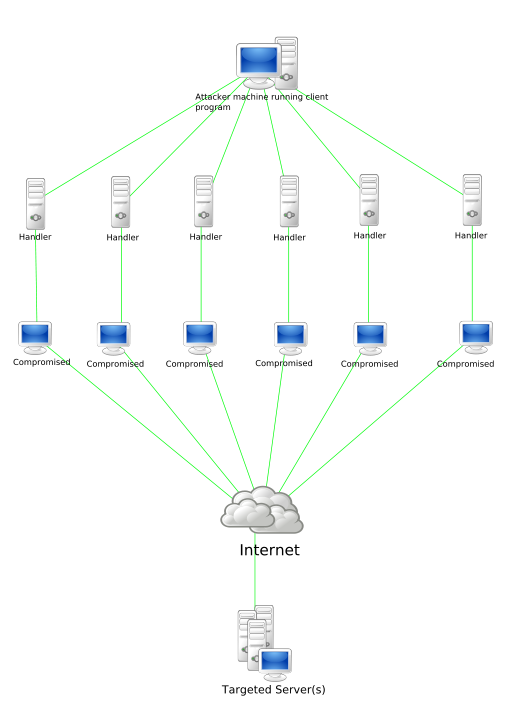
A Denial of Service attack aims to make a website unavailable to users by flooding the website’s servers with an extremely high number of requests. These multiple incoming requests can make website resolution exceedingly slow and can even cause servers to crash.
A Distributed Denial of Service (DDoS) attack is essentially a DoS attack that originates from multiple sources. Such attacks are usually carried out using thousands of unsuspecting zombie machines known as botnets.
DDoS attacks have traditionally been used by cyber criminals to extort money from website owners that rely on the accessibility of their websites. However ‘Hacktivists’ have also initiated such attacks in the past to bring down company and government websites in protest of certain policies or decisions.
A  popular recent example is anonymous’ attack in protest of the Megaupload Raids that targeted various government and music industry sites.
Who can it affect?
DDoS attacks are difficult to safeguard against completely and can affect large and small websites alike.
Having suffered a DDoS attack on our DNS servers in the past, we understand that such attacks can occur and the best solution is to have systems in place that allow you to mitigate the attack and get systems back online as soon as possible.
Which leads us to – How do we mitigate DDoS attacks?
While there isn’t a lot that can be done to prevent DDoS attacks, there are certain techniques that we employ to mitigate DDoS attacks and restore services.
To help mitigate DDoS attacks we’ve employed the services of Prolexic Technologies that is a global leader in DDoS Protection & Mitigation. While there are multiple ways in which Prolexic helps mitigate DDoS attacks, here is a simplified version of how Prolexic works.
  • BGP Routing:
    With BGP routing, when a DDoS attack occurs, our traffic gets routed through Prolexic’s servers where malicious and legitimate traffic is segregated and legitimate users can continue to access our services.
  • Advanced Filtering:
    As the traffic gets routed through Prolexic’s servers, their filtering technology identifies anomalies which are then “red flagged” by the system. Moreover, research is then conducted by Prolexic engineers to determine whether this activity should be blocked on the network. Once malicious activity has been determined, it is labeled in the system and blocked.
How can you independently mitigate attacks?
As a individual website owner you have limited control over a server but you can use CloudFlare to protect your websites from attacks.
CloudFlare protects your websites by routing traffic through their intelligent global network – a little like what Prolexic does for us :)
We already provide CloudFlare on our Hosting servers so Resellers can enable and start using it immediately. More information on how CloudFlare can protect you can be found here - http://www.cloudflare.com/overview
How Web Hosting Providers should deal with a DDoS Attack:
DDoS attacks are a very real threat to website owners and hosts worldwide but like I said before, there is no foolproof way for anyone to really protect themselves against such an attack.
As a Web Hosting provider yourself, I’m sure you’ve come across Customers that consider leaving you in the aftermath of a DDoS attack. You might have felt the same of your upstream provider as well. However, it’s important to remember that anyone can be a target.
An indicator of a good Host isn’t one that hasn’t been attacked yet but one that can effectively restore services and reduce damage.
How Web Hosts handle the situation is also an important indicator. I’ve always seen that the ones that do handle attacks effectively provide detailed information on the following: (This actually applies to most issues/interruption in services)
  1. Which services were affected?
  2. Are the services back up or how long will it take to restore services?
  3. Does the Client need to do anything?
  4. Why did this happen i.e. details of the DDoS attack
  5. How was the attack mitigated?
  6. Can this happen again?
  7. Who can Clients contact if they have any concerns?
Being honest and straightforward will go a long way in assuring your Customers that you’re doing everything you can to resolve the issue and they’ll respect you for keeping them in the loop.

So there you have it – everything you need to know about DDoS Attacks and how you can deal with them! I’d love to know what you think so do comment and let me know your thoughts.


Original Post